Mercedes-Benz GLC : Data processing in the vehicle / Smartphone integration (e.g. Android Auto or Apple CarPlay)
If your vehicle is accordingly equipped, you can connect your smartphone or another mobile end device to the vehicle. You can then control them by means of the control elements integrated in the vehicle. Images and audio from the smartphone can be output via the multimedia system. Certain information is simultaneously transferred to your smartphone. Depending on the type and integration, this includes position data, the day/night mode and other general vehicle statuses. For more information please consult the Operator's Manual of the vehicle/infotainment system.
This integration allows the use of selected smartphone apps, such as navigation or music player apps. There is no further interaction between the smartphone and the vehicle; in particular, vehicle data is not directly accessible. The type of additional data processing is determined by the provider of the app being used. Which settings you can make, if any, depends on the specific app and the operating system of your smartphone.
 Convenience and infotainment functions
You can store convenience settings and individual
settings in the vehicle and change or reset
them at any time.
Depending on the vehicle equipment, this
includes the following settings, for example:
Seat and steering wheel positions
Suspension and climate control settings
Individual settings, such as interior lighting
Depending on the selected equipment, you can
import data into vehicle infotainment functions
yourself...

Other information:
Mercedes-Benz GLC 2016-2026 Owners Manual: Activating/deactivating Active Brake Assist
Requirements: The ignition is switched on. Multimedia system: Settings Assistance Active Brake Assist Select the desired setting. The setting is retained when the drive system is next started. Deactivating Active Brake Assist It is recommended that you always leave Active Brake Assist activated...
Mercedes-Benz GLC 2016-2026 Owners Manual: Removing a wheel
Requirements: The vehicle is raised. NOTE Mercedes-AMG vehicles Observe the notes in the Supplement. You could otherwise fail to recognize dangers. When changing a wheel, avoid applying any force to the brake discs, since this could impair the level of comfort when braking...
Categories
- Manuals Home
- Mercedes-Benz GLC Owners Manual
- Mercedes-Benz GLC Service Manual
- Opening the camera cover of the rear view camera
- Opening and closing the hood
- Function of the interior motion sensor
- New on site
- Most important about car
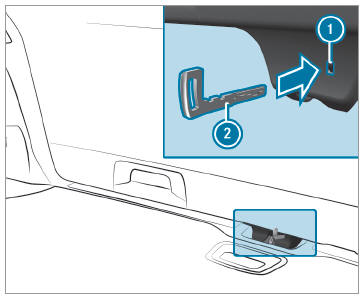
Unlocking the tailgate with the emergency key
Requirements:
The rear seat backrest has been folded forward. The cargo compartment cover has been removed.